
Short Answer
Headphones can reduce speaker sound reaching your microphone. They do not guarantee that keyboard sound effects stay out of a recording. OBS can capture computer audio directly, including audio you hear through headphones.
Check physical keyboard noise, Klakk playback and the recorder’s audio sources separately. Klakk adds keyboard sounds on Mac or Windows; it does not change the noise made by your physical keys.
Written by Levin, Klakk’s developer, with AI assistance. The OBS instructions below follow its official documentation; this is not a test of every recorder, audio device or Klakk capture configuration.
Three Ways Keyboard Sound Can Reach a Recording
| Sound path | What reaches the recording | What to check |
|---|---|---|
| Physical keys → microphone | Switch clicks, key impacts and desk vibration | Keyboard, microphone position and desk setup |
| Klakk → speakers → microphone | Added sound playing in the room | Playback output and volume; headphone leakage can still reach a mic |
| Klakk → computer audio capture | Added sound captured digitally | Desktop, application, screen-capture and virtual audio sources |
Choosing headphones changes the playback path. Choosing sources in OBS changes the capture path. Check both before relying on a recording to keep Klakk audio private.
Start With a Microphone-Only Sample
Turn Klakk off, keep the microphone in its usual position, and record a short sample of speech and typing. Include Space, Return and Backspace. Listen to the saved file rather than relying only on the live audio meter.
If physical typing is audible, try moving the microphone closer to your mouth and farther from the keyboard. Compare a softer typing technique or a desk mat in the same setup. Results depend on the keyboard, microphone and room; Klakk cannot remove this noise.
OBS describes its Noise Suppression filter as useful for mild background noise. Stronger Speex suppression can distort voice. Compare speech before and after filtering instead of treating a filter as a guarantee that key impacts will disappear.
Check OBS Audio Capture on Mac
According to the OBS macOS Desktop Audio Capture Guide, OBS Studio 30 and later on macOS 13 or later can capture all desktop audio or one application. The macOS Screen Capture source also captures audio.
If you want only your microphone in the recording, mute or remove unwanted computer-audio sources. If a tutorial needs audio from one app, select that app rather than all desktop audio. Inspect the Audio Mixer for screen-capture sources too; choosing headphones in Klakk does not exclude it from capture.
Test the scene you will actually record. A different scene or virtual audio route may have different sources.
Check OBS Audio Capture on Windows
The OBS Application Audio Capture Guide documents per-application capture in OBS 28 and later on Windows 10 version 2004 or later and Windows 11. OBS 30.1 also added audio capture to Window Capture and Game Capture sources.
Select only the applications whose audio belongs in your recording. OBS recommends disabling global Desktop Audio when using application sources to avoid duplicate audio. Check the Capture Audio option on window and game sources as well.
Application capture has compatibility limits. If you use virtual audio cables or another recorder, check its actual routing and repeat the recording test.
Set Klakk’s Playback Output
In the website Mac edition, open Settings → Audio → Output Device. Select your connected headphones, or choose System Default to use the Mac’s default output. Recheck the selection and recording after connecting or disconnecting headphones.
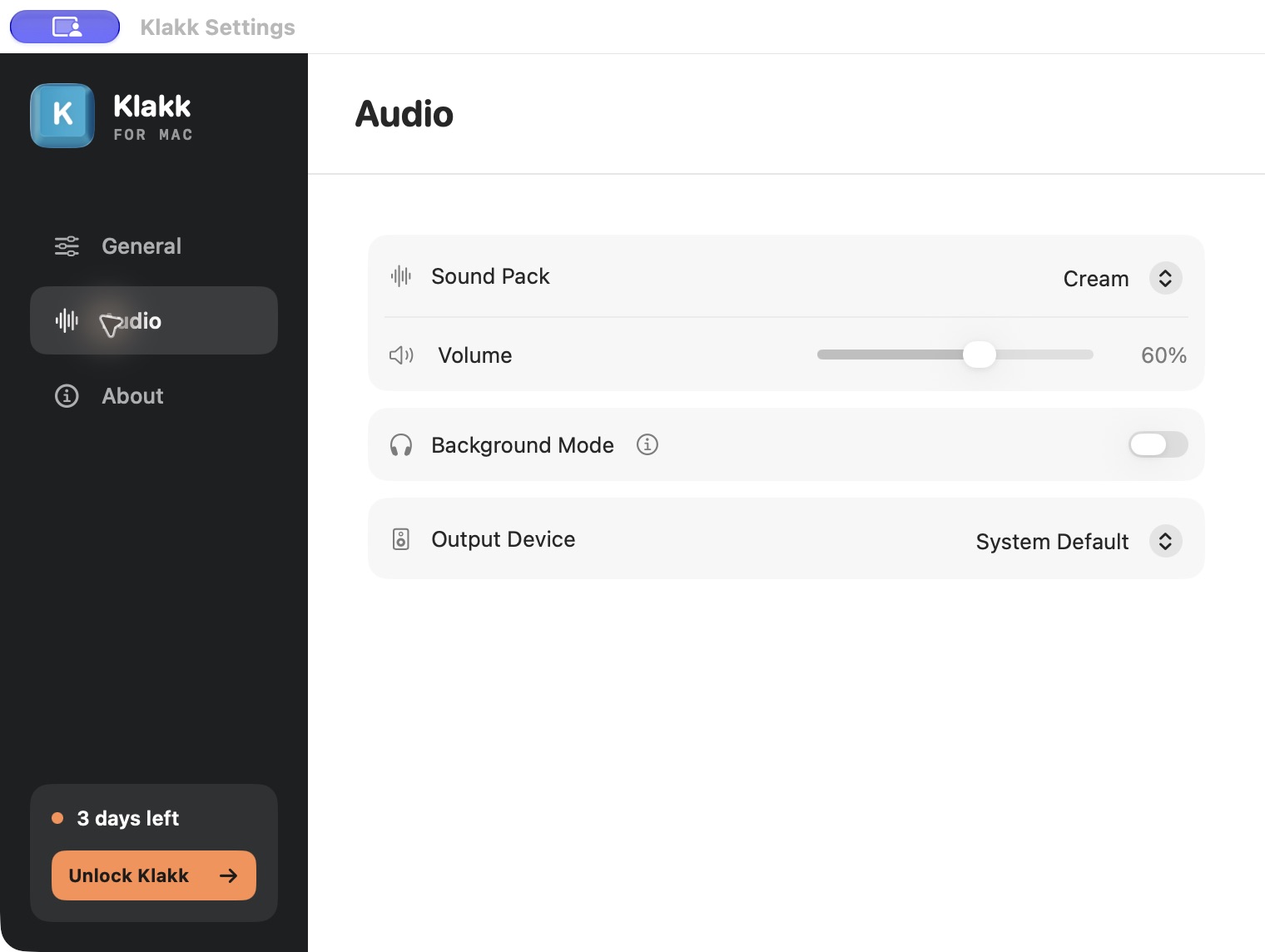
On Windows, confirm the output you actually hear before checking the recorder. This Mac settings screenshot does not establish an identical Windows control or automatic headphone-only behavior.
Keep playback volume low for the test. Pause Klakk if you cannot confirm that its audio is excluded from the recording or stream.
Run a Recording Preflight
- Save a short microphone-only sample with Klakk off. Type the same keys you use during a session.
- Turn Klakk on at low volume and confirm playback reaches the intended output.
- Check every active OBS audio source, including desktop, application and screen-capture audio.
- Record again using the final scene and audio tracks. Compare the saved recording with the first sample.
- If added sounds remain, check unwanted capture sources and acoustic leakage separately. Pause Klakk until the saved recording matches your intended result.
Repeat this check after changing scenes, audio devices or routing. For a live stream, test before going live. If you intentionally want viewers to hear keyboard sounds, include them deliberately and check their level against speech.
Where Klakk Fits
Klakk is an optional way to hear typing feedback while you write or record. It has 14 sound packs. It does not isolate audio for OBS, suppress physical keyboard noise or guarantee a clean voice track.
The current website Mac edition is 1.4.1 / build 23, for macOS 14 or later on Apple silicon and Intel. The website Windows edition is 1.4.1, for 64-bit Windows 10/11 on x64 and ARM64. Windows installers are unsigned.
The website editions offer three days from first launch, then US$4.49 per platform once, plus applicable tax. Website Mac, Windows and Mac App Store licenses are separate. Mac Input Monitoring enables local input-event and physical-key-code processing. The website editions also have usage and license communications; see the privacy policy.
Start with the existing interactive sound preview, then choose a download if you want to test playback with your own recording setup. For installation and the first sound, use the Mac checklist or Windows setup guide.
FAQ
Will headphones keep Klakk out of OBS recordings?
Headphones alone cannot guarantee that. OBS may capture computer or application audio directly. Check its sources and listen to a saved sample; also check for sound leaking from headphones into the microphone.
Can Klakk make my physical keyboard quieter?
Klakk plays added sounds. Physical key noise still needs a separate keyboard, microphone or recording-workflow adjustment.
Can I keep a tutorial app’s sound while excluding keyboard effects?
OBS supports selecting application audio on the documented systems above. Capture the app you want, check for other active desktop or screen-capture audio sources, and test the saved result. Compatibility and virtual routing can affect the outcome.