Before you start
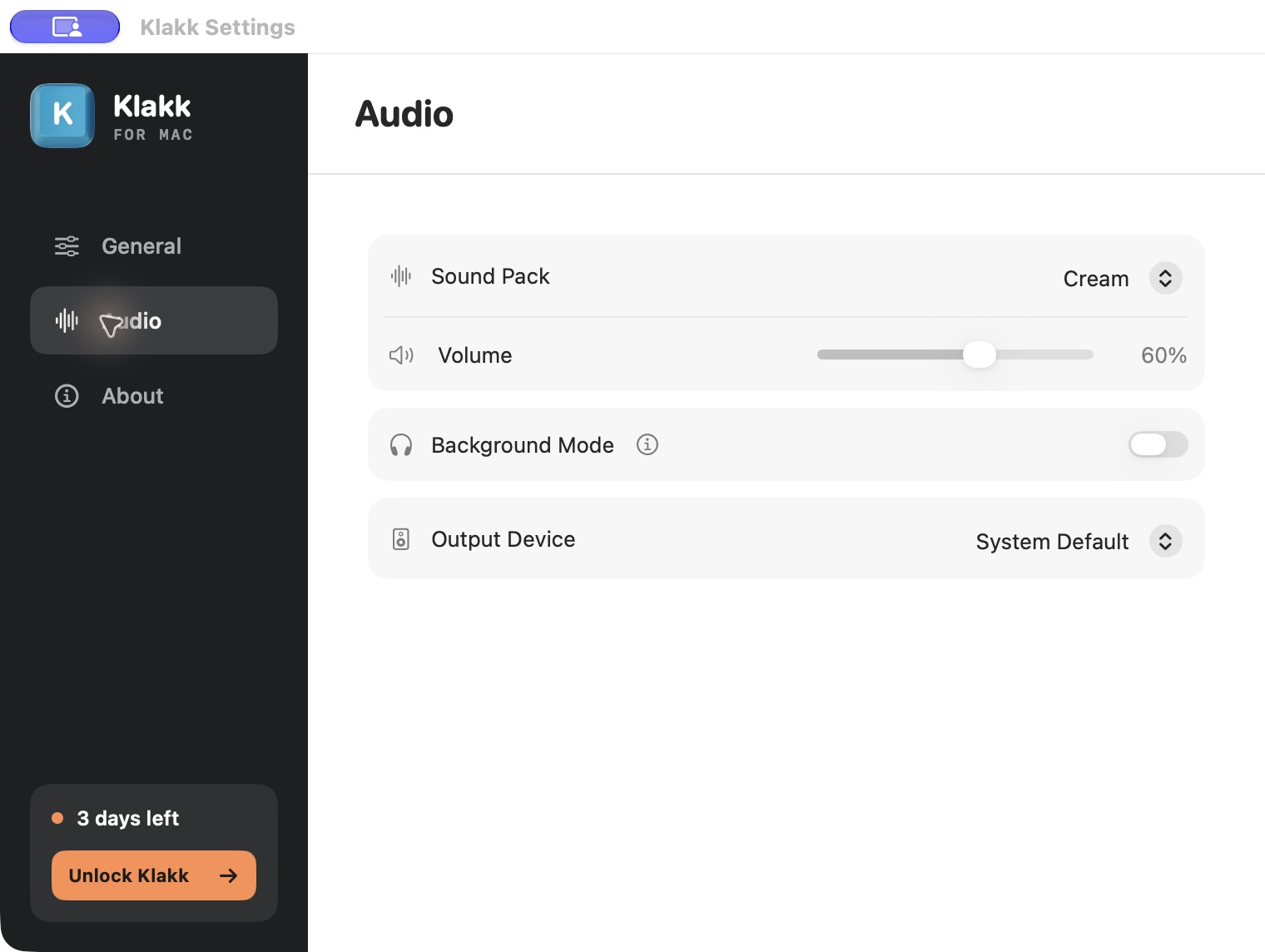
This developer guide was prepared with AI assistance. The settings screenshot below shows the website Mac edition, 1.4.1 / build 23. The Mac App Store edition has its own version, permission prompts and purchase flow.
You need macOS 14 or later and an audio output such as built-in speakers or headphones. Klakk includes 14 keyboard sound packs and a 3-day free trial. The website Mac edition costs US$6.99 once after the trial, with applicable taxes at Pancake checkout. The Mac App Store edition uses Apple’s displayed price; its license is separate from the website edition and from Windows.
On a PC? Use the Windows setup guide instead. You can also preview the sounds before installing.
1. Install the app
Open the official download page. Choose the Mac DMG or Mac App Store.
- DMG: Open the downloaded file, drag Klakk to Applications, then open the copy in Applications. The official Mac download is notarized by Apple.
- App Store: Open the store listing and install Klakk through the App Store, then launch it.
For more detail about the direct download, see the DMG installation guide.
2. Allow Input Monitoring
For website Mac 1.4.1, follow Klakk’s permission prompt, or open System Settings → Privacy & Security → Input Monitoring. Enable Klakk, then quit and reopen it if macOS requests this. In the App Store edition, follow the installed app’s own permission prompt.
This permission allows the app to respond to keyboard events for sound playback. See the Mac privacy policy for how the website edition handles those events, and Apple’s permission guide for the system setting.
3. Enable playback and choose a pack
Open Klakk’s menu, make sure playback is enabled, and choose a sound pack. Begin with a low volume. Type a sentence in your usual writing app, then compare another pack at a similar volume. The app adds sound; it does not alter your keyboard’s feel.
Choose your output device in Klakk’s audio settings. If you select System Default, also check System Settings > Sound > Output. You can use headphones for the generated audio; your physical keyboard will still make its own sound.
Close Settings or quit Klakk
Website Mac 1.4.1 runs from the menu bar, without a Dock icon. Closing the Settings window leaves the app running. To reopen the controls, click its keyboard icon in the menu bar and choose Settings…. To stop the app, choose Quit Klakk from that menu.
4. Check your normal workflow
During the trial, try short bursts of typing, a longer paragraph and switching between your everyday apps. Change one setting at a time so you know what improved the experience.
If Bluetooth audio feels delayed, compare the same sound through built-in speakers or a wired output. Do not use the website demo’s timing as a benchmark for the installed app.
If there is no sound
Work through these checks in order:
- Confirm Klakk is running and playback is enabled.
- Select a sound pack and make sure Klakk’s volume is above zero.
- Check the selected output device in Klakk’s audio settings. If it is System Default, check macOS Sound > Output as well.
- Make sure the selected output is connected, audible and unmuted.
- Confirm Input Monitoring is enabled for Klakk. Quit and reopen the app if macOS requests this.
- Check whether the trial has expired. If you have already paid, follow the purchase recovery steps for your installed edition.
Website Mac 1.4.1 plays its own audio using Input Monitoring. Accessibility permission and macOS’s Play user interface sound effects setting are not requirements for its keyboard playback.
If the issue continues, contact support with the installed Klakk version and build number (if shown), your macOS version, output device and the step that failed. Say whether you installed the website edition through the DMG or Homebrew, or the Mac App Store edition. Do not include passwords, payment information or text you typed.
When the trial ends
Use the purchase action inside the installed app to continue. The DMG edition opens Pancake checkout; the App Store edition uses Apple’s purchase flow. Check the total shown there before buying. Purchase or restore a license for the edition you installed; Mac website, Mac App Store and Windows licenses are separate.