
Fresh installations of the current website revision (2026-10-11.1) enable Launch at Login by default. An existing off choice is preserved. You can change the switch in Settings; your operating system must also allow its startup entry. Then check sound playback separately. An app can open successfully and still be silent because of permissions, its enable switch or the selected audio output.
I’m Levin, Klakk’s developer. This guide was prepared with AI assistance and checked against the website editions’ current startup implementation, an existing Mac screenshot and Apple/Microsoft instructions, with the default-startup update checked on October 12, 2026. It covers Mac 1.4.1/build 23 and Windows 1.4.1. It is not a test of every operating-system version or managed-computer policy.
Mac: enable Launch at Login
The website Mac edition requires macOS 14 or later, on Apple silicon or Intel.
- Install Klakk in Applications, following the Mac installation guide, and open that copy.
- Open Settings from Klakk’s menu-bar menu, then select General.
- Check Launch at Login. Fresh installations default to on; enable it if you previously turned it off and now want automatic startup. If the app reports that it could not change the setting, keep the error message and check the system settings below.
- At your next normal sign-in, look for Klakk in the menu bar. A settings window does not need to remain open for playback.
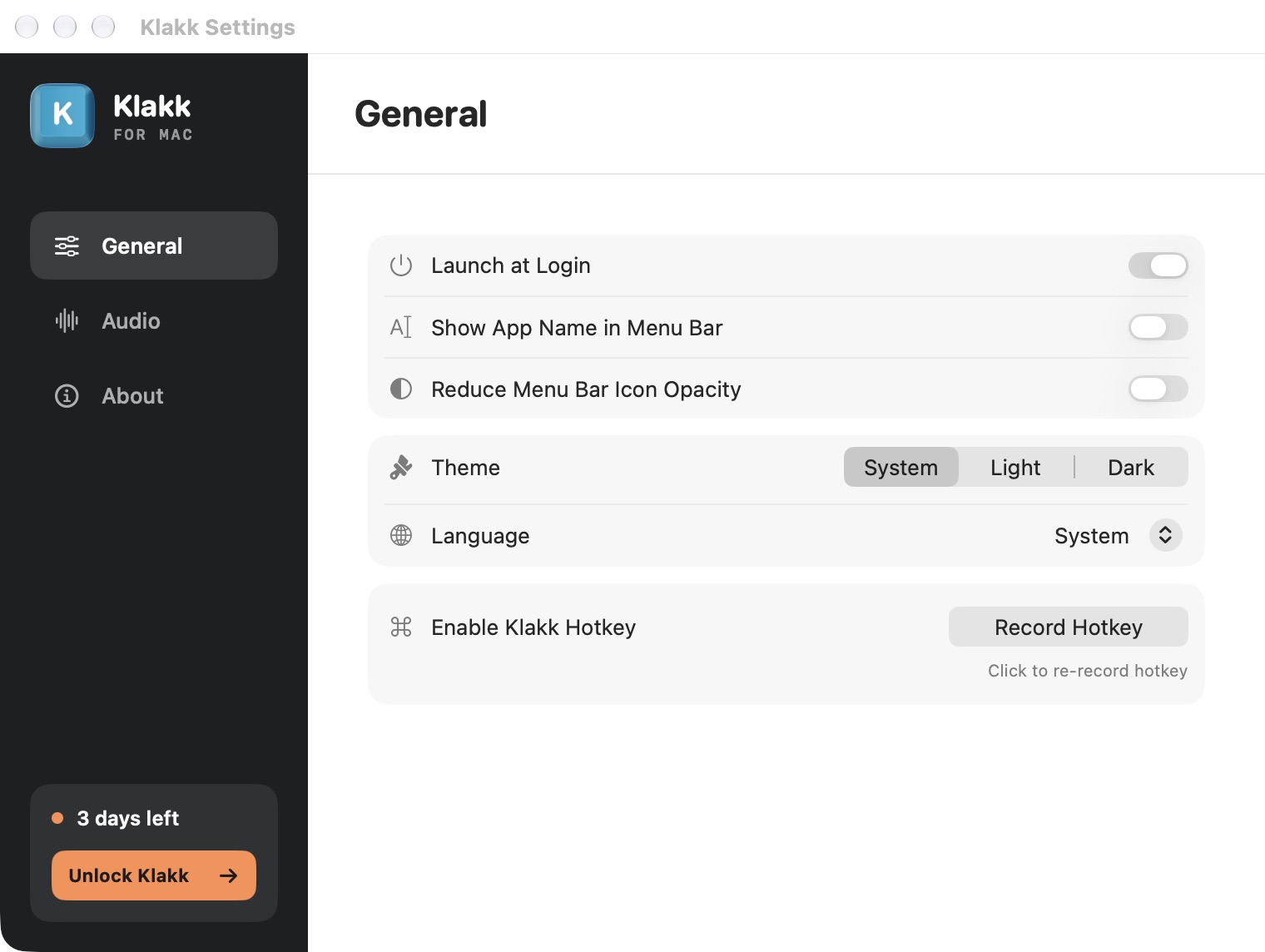
This unmodified screenshot shows the English UI of the website Mac edition, captured during a developer check. The trial label belongs to that check; it does not measure a customer installation or change the trial length.
In macOS Sonoma 14, open System Settings → General → Login Items. Newer versions may name this panel Login Items & Extensions. Review Klakk’s entry and any approval request shown there. Apple documents the Sonoma panel and the current panel.
Klakk uses macOS’s app login service. Use its own switch first; do not add a second custom launch script to make the same app start twice. A system approval or restriction can still affect startup even when the app remembers your preference.
Input Monitoring is a separate permission. If Klakk appears after login but typing is silent, follow the first-sound checklist. Check Input Monitoring, Enable Klakk, the sound pack, Volume and Output Device. Enabling a login item does not grant keyboard-input permission.
Windows: check the app and Startup settings
The website Windows edition supports Windows 10/11 with native x64 and ARM64 builds.
- Open Klakk from the Start menu or its installed location.
- In Settings → General, check Launch at Login. Fresh installations default to on; enable it if you previously turned it off and now want automatic startup. The tray menu also provides this setting.
- Open Windows Settings → Apps → Startup. If Klakk is listed, set it to On. Alternatively, find it in Task Manager’s startup-app list and enable it. These are two views of Windows startup controls, not two separate Klakk installations. See Microsoft’s instructions.
- At your next normal sign-in, check the notification area for Klakk. Its icon may be in the hidden-icons menu.
Klakk registers startup for the current Windows account. Its app switch does not override a separate Windows startup-disable decision. On a managed PC, ask your administrator if startup is restricted.
If Klakk is missing from the list or Windows reports a missing app, open the installed copy and check Launch at Login again. Keep the application in its installed location. If the entry still fails, send the details below to support rather than editing the registry, deleting preferences or creating another startup task.
If the tray icon is present but typing is silent, startup and audio are different checks. Use the Windows first-sound guide to check Enable Klakk, the selected pack, Volume and Output Device.
Three controls with different jobs
| Control | What it changes |
|---|---|
| Launch at Login | Requests startup when you sign in to your account |
| Closing the settings window | Hides settings while Klakk can continue running |
| Mac Background Mode | Changes keyboard-sound volume when designated apps are running |
Background Mode does not register a login item. Closing a window is also different from choosing Quit Klakk, which stops the current app session. The Mac first-sound guide explains the menu-bar and background-volume controls.
Turn automatic startup off
Turn Launch at Login off in Klakk. On Windows, you can also disable its startup entry in Windows settings. On Mac, inspect the login-item panel if you previously added a separate manual entry. Disabling future startup does not by itself quit the copy already running; choose Quit Klakk from its menu when you want to stop playback now.
Automatic startup does not renew the website edition’s three-day trial, which starts at first launch. Each website platform has its own US$4.49 one-time licence, plus applicable tax; the App Store edition has a separate licence. See the download page for the correct platform.
If it still does not start
Contact Klakk support with the platform, operating-system version, app edition/version, whether it opens manually, the app switch’s state, the system startup-entry state and the exact error. State whether the app is absent after sign-in or present with no sound. Those are different problems.
Do not send licence keys or private text you typed. The website editions process keyboard events locally and do not upload typed text or raw keystrokes, while usage/settings and licensing communication still occurs. The privacy policy explains that boundary.