Add a sound while you write or code
Klakk adds recorded keyboard sounds to your typing on Mac. The website Mac edition is 1.4.1, build 23, supports macOS 14 or later on Apple silicon and Intel, and includes 14 sound packs. Its three-day trial starts on first launch.
This guide is from Levin, Klakk’s developer, with AI assistance. We have not established that Klakk improves writing speed, code accuracy or concentration, or that a particular pack works best for an occupation. The checks below help you decide whether you enjoy the added sound in your own apps.
Preview the sounds in your browser · Choose the Mac download
The browser demo responds to typing on its own page. To hear sounds while another app has focus, install the Mac app and grant its input permission. A typing sound does not confirm that a document was saved, a command completed or code compiled successfully.
If you want to hear when an agent needs approval or finishes a reply, compare typing audio with task notifications. Choose the application event you need before buying a sound utility or a bundle.
Set up playback in your editor
- Install and open Klakk, then enable playback.
- Enable Klakk in System Settings > Privacy & Security > Input Monitoring. Restart Klakk if macOS asks you to.
- Choose a sound pack and an audible volume.
- Open Klakk’s audio settings and choose an Output Device. System Default follows the Mac’s selected output; you can also choose a specific available device.
- Type in an ordinary document or code editor. Check Return, Backspace and the shortcuts you actually use.
Apple explains Input Monitoring and Mac sound output. These controls have separate jobs: permission allows input events; audio settings choose where the added sound plays.
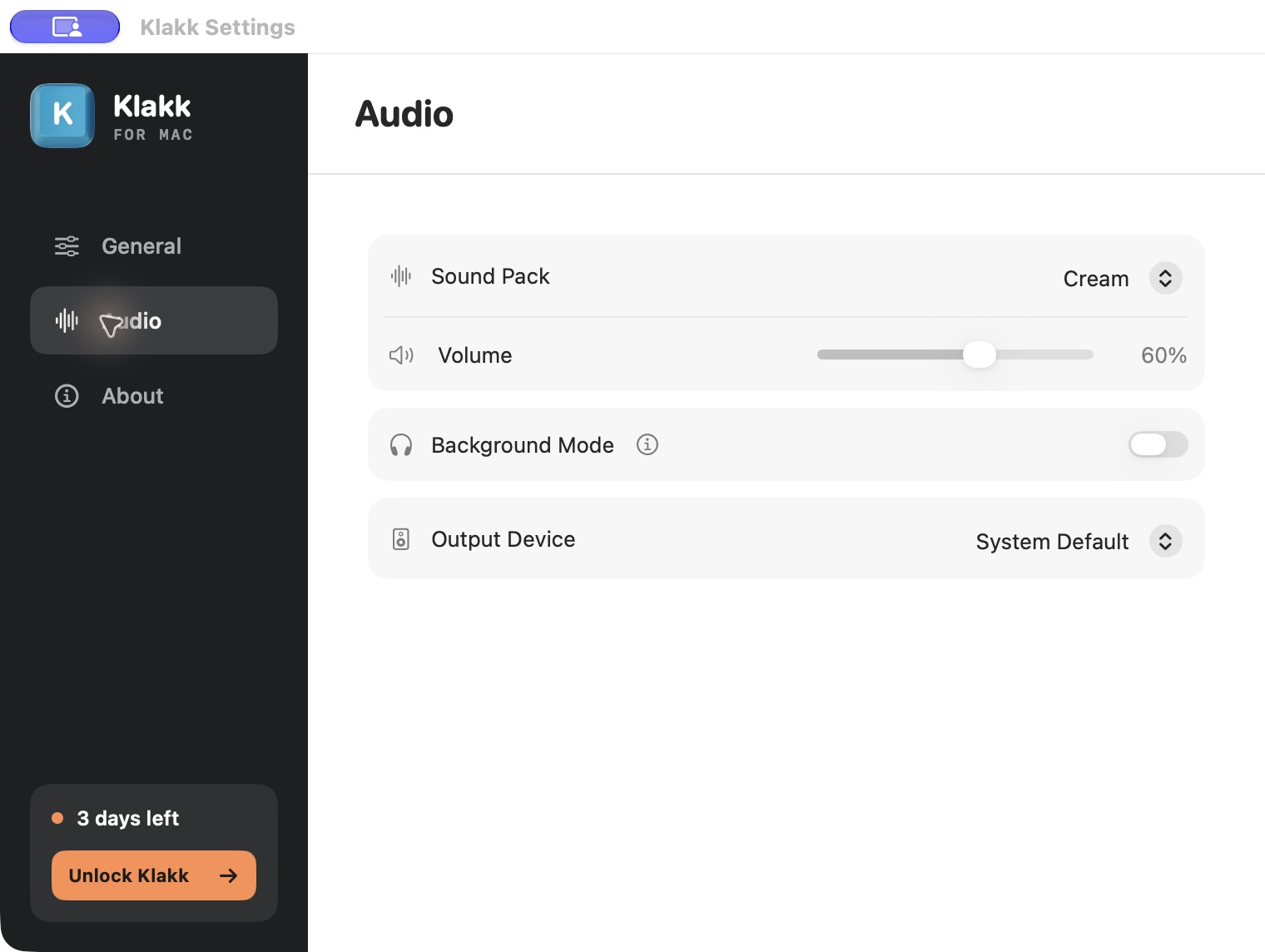
The screenshot shows the English interface in the website Mac edition 1.4.1.
If nothing plays, check that playback is enabled, the trial or license permits playback, and both app and output volumes are audible. The first-sound guide covers troubleshooting.
Compare your actual writing and coding tasks
Use a short piece of your own text or code. Keep the pack, output and volume the same while moving between your usual apps. This is a suggested preference check, not a compatibility test of every editor or app version.
| What to try | What to check |
|---|---|
| Draft a paragraph or edit a few lines of code | Do you enjoy the added sound while entering text? |
| Use Return, Backspace and your editing shortcuts | Do the sounds remain comfortable and the shortcuts behave as expected? |
| Switch between your document, editor and browser | Check the apps you use, rather than assuming the browser preview proves system-wide playback. |
| Disable playback and continue the same task | Which setup do you prefer? |
Choose a pack by listening. Lower the volume, change the pack or disable playback when you want quiet. The app changes audio playback; it leaves your keyboard’s physical sound, switch feel and key travel unchanged.
Check calls and shared audio separately
Headphones route the added sound to their output. They do not make the physical keyboard quieter or guarantee that a recording or call excludes application audio. A microphone can capture room sound, and a meeting’s computer-audio sharing option may transmit app sounds.
Before a call, check what you are sharing and disable Klakk playback if you do not want the added audio. See the Zoom and Teams audio guide. Do not rely on a typing sound to tell you what another participant can hear.
Know what the permission allows
The website Mac edition processes keyboard press, release and modifier events and physical key codes locally to play sounds. It does not upload the text you type or raw keystrokes. It also has usage/settings analytics and license communication; local sound playback does not mean zero network communication. See the Mac privacy policy.
Only grant input access to apps whose practices you understand. This guide describes the website edition; it does not certify the privacy behavior of other keyboard apps or every App Store version.
Check your purchase channel
The website Mac edition costs US$6.99 once, plus applicable tax, through Pancake after its first-launch three-day trial. The Mac App Store edition has its own Apple purchase, regional price and license. A website Mac license, a Windows license and an App Store purchase are separate.
Windows also has a website 1.4.1 edition. For a Windows computer, use the Windows setup guide rather than the macOS permission steps above.
Questions before you install
Which pack is best for writers or developers?
There is no verified occupation-specific best pack. Use the 14-pack preview guide to compare sounds, then try your favorites in your own editor during the trial.
Do I need a browser or editor extension?
Klakk is an installed Mac app with input permission, rather than a browser extension. Check your own apps during the trial; this guide does not promise compatibility with every editor, protected input field or app version.
Does hearing a click prove that text was entered correctly?
No. Klakk plays sound in response to keyboard events. Check the document, application or command output for the actual result.
Can I use the Mac purchase on Windows?
The website Mac and Windows products have separate licenses. The Mac App Store purchase is also separate.
Try the browser preview, then choose your Mac installation channel if you want to hear the sound in your own writing or coding setup.