Add typing sounds to the keyboard you already use
Klakk can play keyboard sounds while you type on your MacBook’s built-in keyboard. Start with the browser sound preview, then use the desktop app if you want playback in your usual Mac applications. The preview responds inside its test area; installing the app is a separate step.
This developer guide was prepared with AI assistance. The setup below applies to the website Mac edition, 1.4.1 / build 23, which requires macOS 14 or later and supports Apple silicon and Intel Macs. It includes 14 sound packs.
Added audio leaves the keyboard’s key travel, force and physical noise unchanged. Headphones can keep the generated sound private, but people nearby can still hear your physical typing. Choose hardware separately if you want a different layout or switch feel.
Install the website Mac edition
Open the official download page and choose the Mac DMG. Open the downloaded file, drag Klakk to Applications and launch that copy. The official website Mac package is Developer ID-signed and Apple-notarized.
The Mac installation guide explains the DMG steps and how the website edition differs from the Mac App Store edition. The store has its own version, permission prompts and purchase flow.
Understand Input Monitoring before enabling it
For website Mac 1.4.1, open System Settings → Privacy & Security → Input Monitoring and enable Klakk. Quit and reopen the app if macOS requests this.
Apple’s Input Monitoring guide explains that the permission can allow an app to monitor input while you use other applications. The permission is broader than a timestamp notification.
Website Mac 1.4.1 processes key-down, key-up and modifier events, including physical key codes, locally for playback. It does not upload typed text or raw keystrokes. It also has usage, settings and licensing communication. Read the privacy policy for those separate activities; local sound playback does not mean the app has no network communication. These website-edition details should not be assumed to describe every App Store version.
Choose your sound and output device
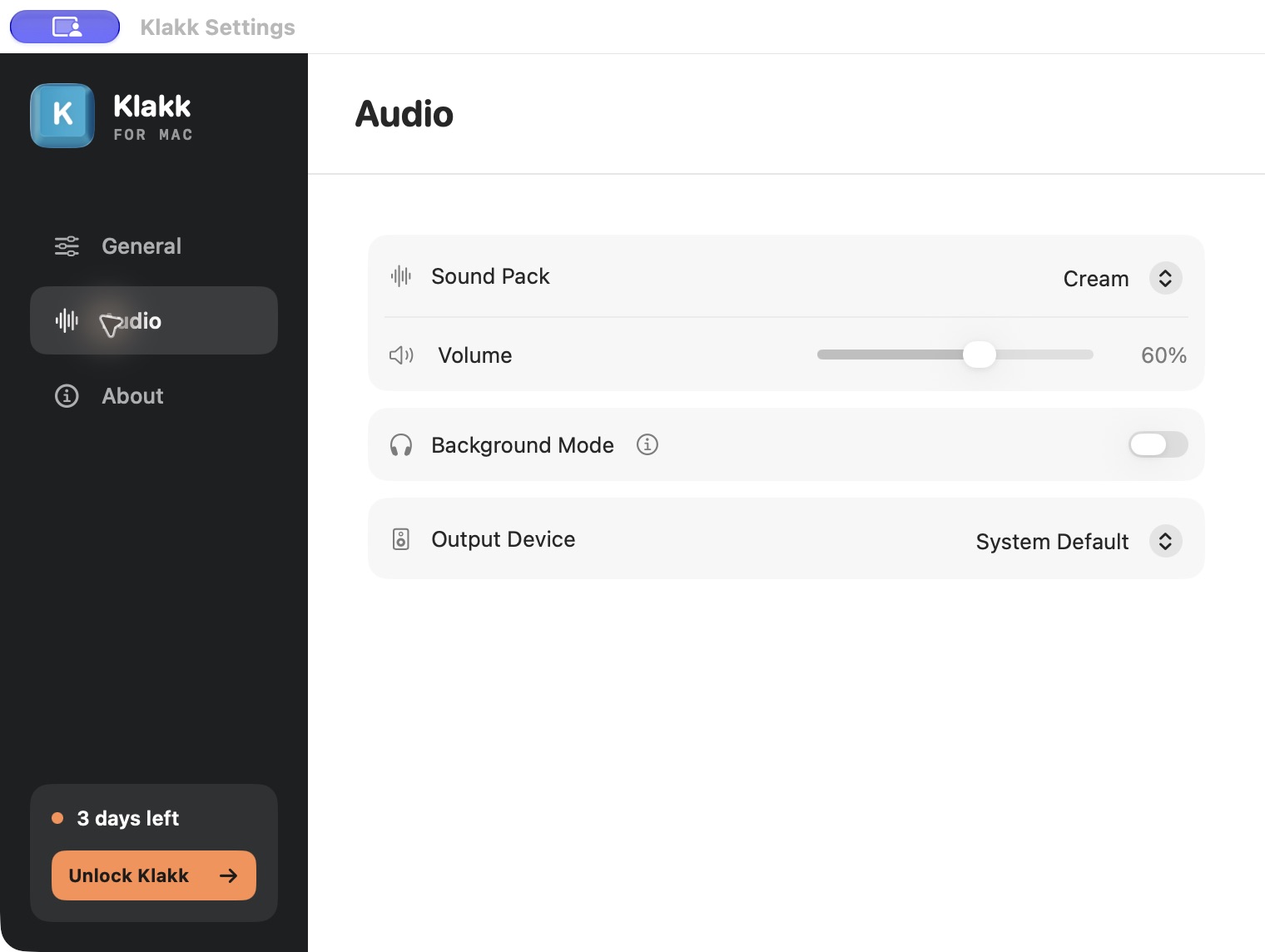
Enable playback in Klakk, then open Settings → Audio. Choose a Sound Pack, begin at a low Volume and select your Output Device. With System Default, also check System Settings → Sound → Output. Selecting headphones in macOS is not enough if Klakk is set to a different device.
Type a short paragraph in an application you normally use. Compare another pack at a similar volume, try Space and Return, then pause and resume playback. Choose according to what you enjoy hearing. A sound preference does not establish better focus, faster typing or fewer errors.
If sound seems delayed over Bluetooth, compare the same pack with built-in speakers or a wired output. That is a personal comparison, not a measured latency benchmark. The browser preview’s timing does not prove the installed app’s total response time.
If your MacBook makes no added sound
Check that Klakk is running, playback is enabled, a pack is selected and its volume is above zero. Confirm that the selected output is connected and unmuted, then check Input Monitoring and whether your trial or license permits playback.
Use the first-sound checklist for the full sequence. Website Mac 1.4.1 does not require Accessibility permission or macOS’s Play user interface sound effects setting for its keyboard playback.
Trial and purchase options
The website Mac edition’s three-day trial starts at first launch. Continued use costs US$4.49 once for the Mac website license, plus applicable taxes shown at Creem checkout. Start the purchase from the installed app and check the total before buying.
The Mac App Store edition uses Apple’s displayed price and a separate license. Windows also has a separate license; both website direct editions are currently 1.4.1. See the Windows product page if you are installing on a PC.
FAQ
Can I use the built-in MacBook keyboard?
Yes. You can add sounds while typing on the built-in keyboard; an external mechanical keyboard is not required. Your Mac must meet the installed edition’s system requirements.
Will headphones make my physical keyboard quieter?
Headphones change where you hear the added audio. The physical keyboard still makes its own noise and keeps its original feel.
Does Input Monitoring mean Klakk receives only key timing?
No. Website Mac 1.4.1 locally processes keyboard events and physical key codes for playback. Its privacy policy separately describes usage, settings and licensing communication.
Can I use my Mac App Store purchase in the website edition?
The Mac App Store, Mac website and Windows licenses are separate. Purchase or restore the license for the edition you installed.
Preview and download
Preview the sounds · Download Klakk for Mac · Compare Mac keyboard sound apps