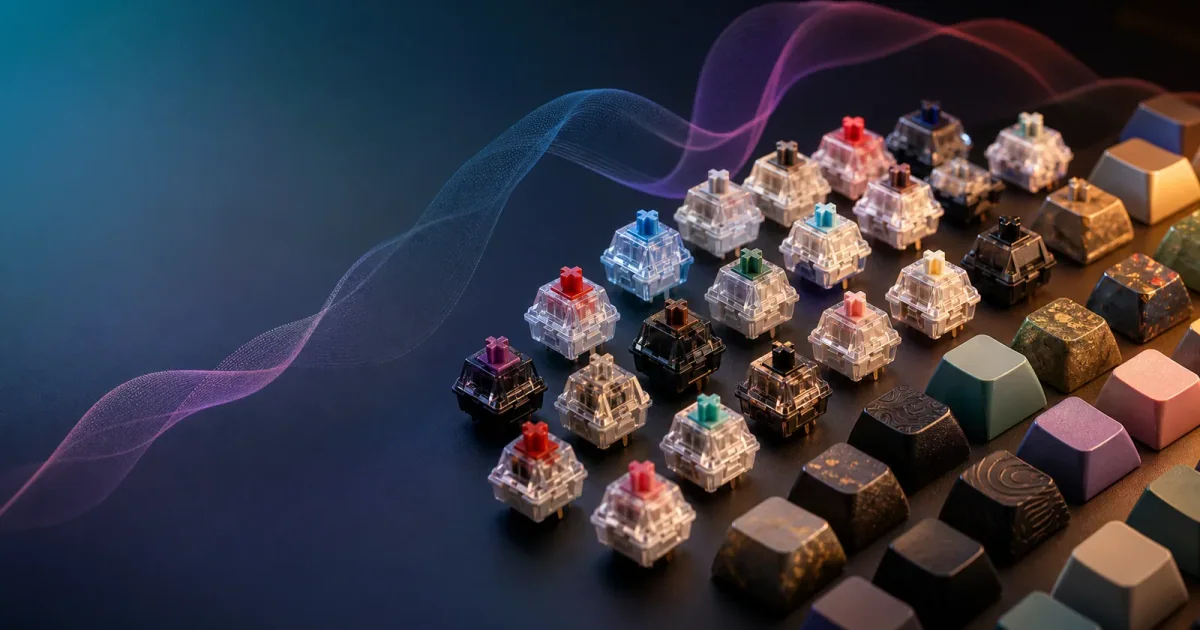
Mechanical Keyboard Sound Simulator: The Headphone-Only Solution for Shared Spaces

Bobby Jackson #mechanical keyboard sound simulator #keyboard typing sound test

A mechanical keyboard sound simulator is a native macOS app that adds authentic, real-time typing sounds—from the sharp click of a Cherry MX Blue to the deep thock of a linear switch—to every keystroke you make. Its defining feature is audio routing: all sound is played exclusively through your headphones, creating a personal, immersive typing soundtrack that remains completely silent to anyone else in the room. This guide explains how it works, who it’s for, and how to use it as a practical tool for focus and privacy in noise-sensitive environments.

Key Takeaways

  • A mechanical keyboard sound simulator adds authentic switch sounds to your typing, with audio played only through your headphones.
  • It’s the ideal solution for noise-sensitive environments like open offices, libraries, and shared homes where a physical mechanical keyboard would be disruptive.
  • Use it as a virtual test lab to audition switch sounds like Cherry MX Browns or Gateron Reds before investing in hardware.
  • The software uses macOS’s standard Accessibility API for system-wide input detection, requiring a simple one-time permission grant.
  • It provides a low-cost, portable auditory enhancement but does not change your keyboard’s physical feel.
  • Apps like Klakk offer a full-featured 3-day free trial on the Mac App Store with a one-time purchase price.

Who Is a Keyboard Sound Simulator For?

This software solves a specific conflict: the desire for satisfying auditory typing feedback versus the need for silence in shared spaces. It’s for:

  • The Remote Worker in a Shared Home: You crave the focus rhythm of clicky keys but your partner is on a call in the next room.
  • The Developer in an Open Office: You want tactile audio confirmation for your code but your deskmates need quiet concentration.
  • The Student in a Library or Dorm: You enjoy the sound of mechanical switches but must respect the enforced silence around you.
  • The Enthusiast on a Budget: You want to explore the sonic differences between switch types before committing to a custom keyboard build.

For more on how this targeted auditory feedback aids specific workflows, explore our article on keyboard sounds for writers and developers.

For a visceral sense of the sounds these apps replicate, watch this detailed Mechanical Switch Sound Comparison & Typing Test.

Why Use a Mechanical Keyboard Sound Simulator?

Beyond novelty, a dedicated keyboard sound simulator addresses practical, daily problems for Mac users. It’s about enhancing your interaction with your computer in a personalized, context-aware way.

Audition Switch Sounds Before Buying Hardware

The world of mechanical switches is vast. A simulator acts as a crucial “test drive.” You can experience the distinct acoustic profile of a sharp Cherry MX Blue, the subtle bump of a Brown, or the smooth sound of a linear Red through your own typing rhythm. This hands-on comparison helps you make an informed decision before soldering switches into a new board. For a deeper dive into switch characteristics, check out manufacturer resources like the Cherry MX switch overview or Gateron’s switch guide.

Gain Auditory Feedback Without Disturbing Others

This is the paramount benefit. The satisfying auditory confirmation of a keystroke can improve typing rhythm and accuracy. However, in noise-sensitive environments, a physical mechanical keyboard is socially impractical. A mechanical keyboard sound simulator resolves this perfectly. By keeping all sound in your headphones, you get the full psychological benefit of audible typing feedback while maintaining complete acoustic privacy. This is a core solution for a quiet office.

An Accessible and Portable Enhancement

A quality typing sound simulator like Klakk offers a low-barrier entry. For a small, one-time purchase, you gain access to a library of professionally sampled switch sounds that travel with your Mac. There’s no need to carry an extra peripheral—it seamlessly enhances typing on Apple’s built-in keyboards or any other quiet peripheral.

Support Focus and Create a Productive Rhythm

Consistent auditory feedback can function as productive auditory masking. The rhythmic sounds from your simulator can help drown out distracting ambient noise, creating a consistent sonic environment for deep work. The sound provides real-time confirmation of your input, reinforcing a steady workflow.

How a Mechanical Keyboard Sound Simulator Works on macOS

The technology operates in three synchronized stages: input monitoring, audio triggering, and low-latency playback. Understanding this process reveals why a dedicated simulator feels responsive.

1. Input Detection via Accessibility API To detect every keystroke globally and securely, the app uses macOS’s Accessibility API. Upon first launch, macOS prompts you to grant permission in System Settings > Privacy & Security > Accessibility. This is a standard, system-level security gate for utilities that observe user input—the same framework used by password managers and window-management tools. Once authorized, the app listens for key events. Apple provides full documentation on this privacy-focused system in their support article on macOS Accessibility settings.

2. Audio Triggering from a Sampled Library For each keystroke, the software instantly triggers a corresponding high-fidelity audio sample. Advanced simulators use multi-sampled recordings of actual switches (like those from the Everglide or NovelKeys Cream packs in Klakk) with subtle randomization to avoid a robotic sound and mimic real hardware.

3. Low-Latency Playback to Headphones The sound is played through your selected audio output with minimal latency (under 10 ms for Klakk, as stated on its site). This step is critical; high delay feels jarring. Native apps use Core Audio for playback so the sound feels like an immediate consequence of your typing. The audio is routed only to your chosen output (headphones).

Crucial Clarification: This process only affects sound. The software cannot alter the physical actuation point or tactile bump of your keyboard. A simulator adds a synchronized auditory layer; it does not transform a laptop keyboard into a physical mechanical switch. For a detailed comparison, read our analysis of mechanical keyboard vs. sound simulator.

How to Set Up a Simulator in 5 Minutes

Getting started with a typing sound simulator like Klakk is a quick process.

Step 1: Download from the Mac App Store Search for “Klakk” on the Mac App Store and click “Get” to download. The app offers a full-featured 3-day free trial with no credit card required.

Step 2: Grant Accessibility Permission Upon first launch, macOS will prompt you. Click “Open System Settings,” navigate to Privacy & Security > Accessibility, and toggle Klakk ON. This one-time step allows global keystroke detection for sound triggering.

Step 3: Select Your Sound & Connect Headphones Open Klakk and explore its library of 14 sound packs (including Cherry MX, Gateron, and Banana Split switches). Use the demo field to audition them. For the private experience, connect your headphones. You can quickly toggle sounds on/off globally with the ⌘⇧K shortcut.

Step 4: Fine-Tune and Integrate into Your Workflow Adjust the master volume in the menu bar control. Enable optional sounds for modifier keys if desired. Once set, the app runs unobtrusively in the background, adding acoustic feedback to every app. For a full walkthrough, visit our getting started guide.

Sound Simulator vs. A Real Mechanical Keyboard

This isn’t about which is better, but which is right for your priority: tactile experience or acoustic privacy. A simulator excels in the latter.

A physical keyboard changes the fundamental feel of typing. A software simulator is an audio enhancement layer. Its core benefit is contextual freedom: you enjoy iconic mechanical sounds anywhere without being a noise source.

ConsiderationPhysical Mechanical KeyboardSoftware Sound Simulator
Tactile & Haptic FeedbackProvides real physical feedback (actuation force, bump).Does not alter key feel.
Acoustic ImpactSound is audible in the room. Can be disruptive.Sound is private through headphones. No noise pollution.
Portability & SetupA separate peripheral. Not ideal for mobile use.Runs as a background app on your Mac. Completely portable.
Upfront CostOften high ($100+ for a quality board).Typically a low, one-time software purchase (e.g., $4.99).
Primary Use CaseEnhancing the physical typing experience where noise is acceptable.Enhancing the auditory typing feedback where silence is mandatory.

Many users have both: a physical board at a home desk and a simulator on their MacBook for cafes, libraries, or shared workspaces.

Finding Your Perfect Typing Sound

The quest is personal. A high-quality simulator transforms theoretical descriptions into experience. Understanding the three primary switch families helps:

  • Linear Switches (e.g., Cherry MX Red, Gateron Black): Smooth press with a deep, muted thock. Clean, uninterrupted sound.
  • Tactile Switches (e.g., Cherry MX Brown, Gateron Brown): A subtle bump with a deeper, rounded sound. Satisfying actuation confirmation.
  • Clicky Switches (e.g., Cherry MX Blue): A sharp, distinct click. The iconic mechanical sound, but disruptive to others.

Use your simulator to load different profiles. Does a pronounced click help your coding accuracy? Does a linear thock suit long-form writing? This hands-on audition is invaluable. For more on the science behind these preferences, learn about the neuroscience of typing sounds.

Frequently Asked Questions (FAQ)

Is it safe? Does it spy on my keystrokes? Yes, when using a reputable app. The macOS Accessibility permission allows the app to detect that a key has been pressed, but not what you are typing (characters, passwords). Apps like Klakk state they do not collect, store, or transmit keystroke data. You can review Klakk’s full privacy policy for details.

Will it slow down my Mac? According to Klakk’s FAQ, the app is designed to be lightweight, using under 1% CPU when idle and approximately 50 MB of memory. Performance impact on modern Macs is typically negligible.

Can I use my own custom sounds? The ability to import custom sound packs is a planned feature on Klakk’s roadmap. Currently, it includes 14 professionally sampled packs from 7 brands for comprehensive comparison.

Can I use it with any keyboard? Yes. It works with any keyboard connected to your Mac—the built-in MacBook keyboard, Magic Keyboard, or any third-party USB/Bluetooth keyboard.

What if I don’t like it after purchasing? Klakk’s FAQ mentions a 14-day satisfaction refund policy after purchase. Contact support through the channels listed on the App Store or website for details.

Ready to Transform Your Typing Sound?

A mechanical keyboard sound simulator bridges the gap between desire and practicality. It delivers satisfying, productivity-boosting acoustics directly to you, while preserving the quiet of your shared space. It’s a simple, affordable way to add a layer of sensory polish to your daily work on a Mac.

The best way to understand the appeal is to feel it for yourself. Experience Klakk’s full features with a 3-day free trial on the Mac App Store. If it transforms your focus, it’s a one-time purchase for lifetime access.

Download Klakk from the Mac App Store and start your free trial today.


Sources & Further Reading

  1. Apple Support. “Use Accessibility settings on your Mac.” https://support.apple.com/guide/mac-help/change-accessibility-settings-mh35884/mac
  2. Cherry MX. “MX Blue - Clicky Switches.” https://www.cherrymx.de/en/mx-original/mx-blue.html
  3. Gateron. “Switches.” https://www.gateron.co/collections/switches
  4. Klakk. “Homepage & FAQ.” https://www.tryklakk.com
  5. Klakk Blog. “Keyboard Sounds for Writers and Developers.” https://tryklakk.com/en/blog/keyboard-sounds-for-writers-developers

Related Articles